How to Set Up an eSIM on iPhone | Step-by-Step Guide with Screenshots
eSIM Guides · · 10 min read · By AirCarta Team
Installing a travel eSIM on an iPhone takes about a minute, and every step below shows the screen you will actually see.
The instructions are the easy part. What trips people up is one setting near the end that sounds like the exact thing they were trying to avoid, and a piece of advice that circulates widely and is simply wrong. Both are covered here.
Works on every eSIM-capable iPhone, from the XS onwards.
⚡ Before You Start
Three checks, thirty seconds:
*#06# and look for an EID. No EID means no eSIM support.👉 Check your exact iPhone model →
✉️ What Arrives After You Buy
Your confirmation email lands within about a minute:
| What | Why it matters |
|---|---|
| QR code | Scan it with the iPhone to install the profile |
| Manual details | SM-DP+ address and activation code, for when scanning fails |
| Plan details | Destination, data allowance and validity |
💡 Open the email on a second screen, a laptop or tablet, before scanning. You cannot scan a QR code with the same phone that is displaying it.
If you use the AirCarta app there is no QR code at all: choose your plan and tap Install eSIM.
📱 Step by Step, With Screenshots
Step 1: Open Settings and go to Cellular
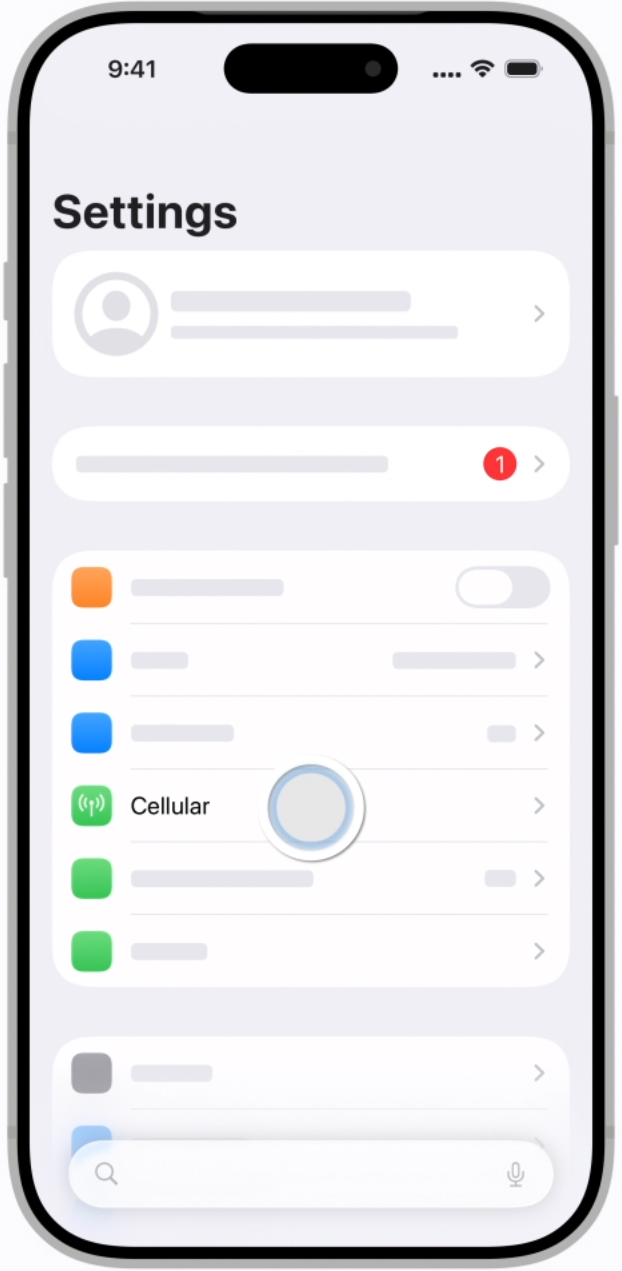
From the home screen, open Settings → Cellular. Depending on your region and iOS version this may read Mobile Data or Mobile Service.
Step 2: Tap Set Up Cellular or Add eSIM
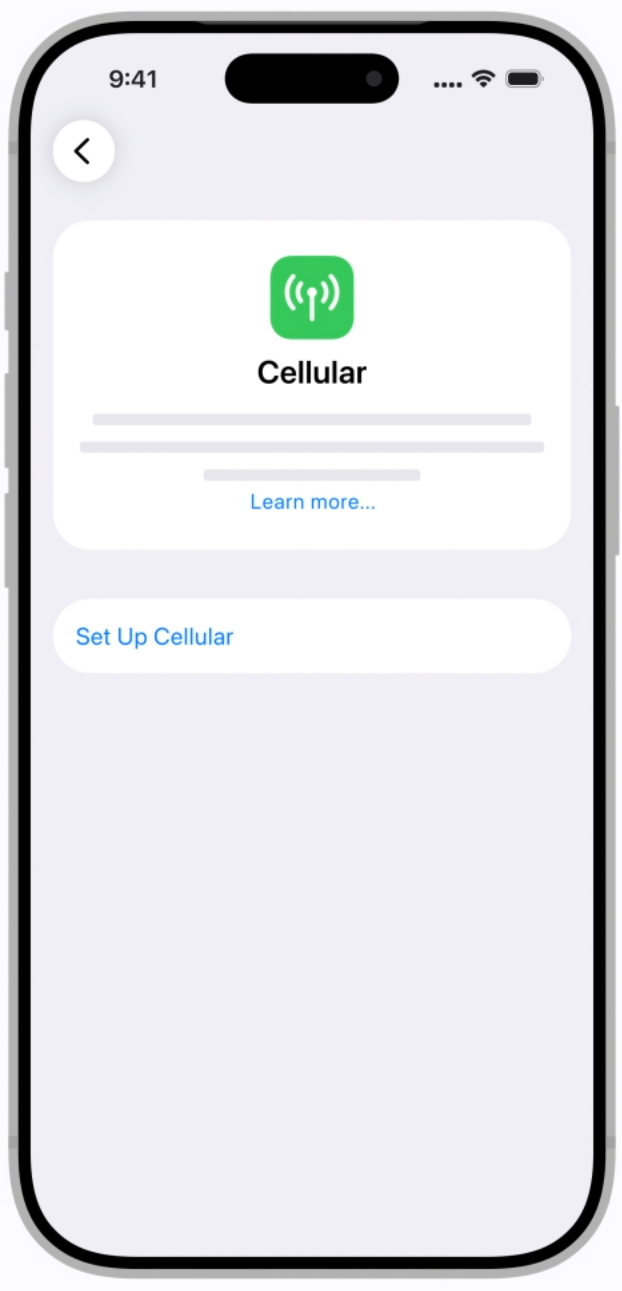
The wording differs by iOS version. Set Up Cellular, Add eSIM and Add Data Plan all lead to the same place.
Step 3: Choose Use QR Code
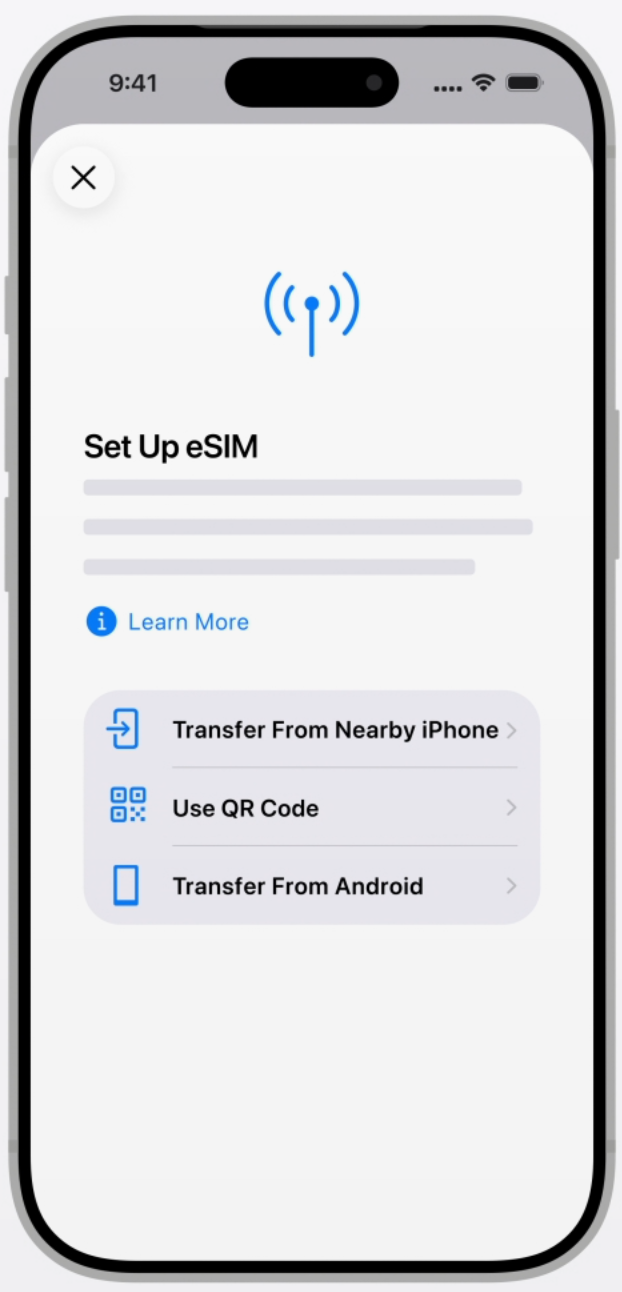
Select Use QR Code and point the camera at the code in your email. The iPhone detects the plan and begins installing on its own.
Step 4: Confirm and label the line
Tap Continue, then Add Cellular Plan. Installation takes a few seconds.
When prompted, give the line a name you will recognise, such as Travel Data. This matters more than it sounds: once you have two lines, every later screen asks you to choose between them, and "Secondary" tells you nothing at a glance.
If the QR code will not scan
Use the manual route: Add eSIM → Enter Details Manually, then type the SM-DP+ address and activation code from your email. This works around screen glare, a low-resolution image, or a scratched camera lens.
🛰️ The Step That Actually Makes It Work
This is where most failed setups end, and it is one toggle.
Enabling roaming feels like precisely the thing you bought an eSIM to avoid, so people leave it off and then find they have no data. The reasoning is simple once stated: your travel eSIM is a foreign profile connecting to a local network, which is technically roaming. The plan is prepaid, so nothing extra can be charged to it.
Leave Data Roaming OFF on your personal line. That is where a real bill would come from. Your home SIM keeps working for calls and 2FA texts either way.
Then set the travel line as your data line: Settings → Cellular → Cellular Data → [your travel eSIM].
📶 Which iPhones Support eSIM
| Model | eSIM | Notes |
|---|---|---|
| iPhone 17 series | ✅ | Two active eSIMs; US models have no SIM tray |
| iPhone 16 series | ✅ | Two active eSIMs; US models have no SIM tray |
| iPhone 15 series | ✅ | Two active eSIMs; US models have no SIM tray |
| iPhone 14 series | ✅ | First eSIM-only generation in the US; SIM tray elsewhere |
| iPhone 13 series | ✅ | Two active eSIMs from iOS 16; SIM tray in every region |
| iPhone 12, 11 | ✅ | One physical SIM plus one eSIM |
| iPhone XS, XS Max, XR | ✅ | The first eSIM-capable iPhones |
| iPhone SE (2nd gen and later) | ✅ | SE 3rd generation supports two active eSIMs |
The mainland China exception, which is now changing. For years, iPhones sold in mainland China shipped with two physical SIM slots and no eSIM chip, and that remains true of every model up to and including the 16 series. It is hardware, so no update adds it.
That changed in October 2025, when China Mobile, China Telecom and China Unicom received approval to run commercial eSIM services and the eSIM-only iPhone Air went on sale there. If you bought your iPhone in mainland China, check for an EID rather than assuming either way.
An iPhone can store several profiles, commonly eight or more, and keep two active at once on the 13 and later. Apple does not publish a hard storage figure.
More per generation in our iPhone 13 eSIM guide and the iPhone 17 setup guide.
⏱️ When Does the Plan Start?
Not when you buy it, and not when you install it. Most travel plans start at first connection to a network at your destination.
That is why you can install weeks ahead without losing a day. Leave the line switched off until you land, then turn it on.
Full detail, including the plans that behave differently, in how to activate your eSIM.
✅ Checklist Before You Fly
🛠️ Troubleshooting
Installed but no data
Check in this order: the line is on, Data Roaming is enabled for that line, and it is selected as your mobile data line. The middle one is the cause the large majority of the time.
"Unable to Complete Cellular Plan Change"
Almost always a carrier lock. Check Settings → General → About → Carrier Lock. Most operators unlock a device free of charge once the contract is settled.
No service for the first minute after landing
Normal. Toggle airplane mode once and give it a minute. If nothing after five, restart the phone.
Can I rescan my QR code on another phone?
No, and this is worth stating plainly because the opposite advice circulates widely. An eSIM profile installs once. Once it is on a device it is tied to that device's chip, and rescanning the same code elsewhere will fail. If you delete the profile, you generally cannot reinstall it either.
Delete a travel eSIM only when you are certain you are finished with it.
Data works but calls do not
Expected. Travel eSIMs are data-only. Calls and texts stay on your home number through the physical SIM, and voice apps work normally over the eSIM data. See data-only eSIMs explained.
❓ Frequently Asked Questions
How do I install an eSIM on my iPhone? Settings → Cellular → Add eSIM → Use QR Code, then scan the code from your confirmation email. Do it on Wi-Fi before you travel.
Do I need Wi-Fi to set up an eSIM? For installation, yes, or any working data connection. Once installed, no connection is needed until you activate it at your destination.
Do I have to remove my physical SIM? No. The iPhone runs both. Your SIM keeps your number for calls and 2FA while the eSIM carries data.
Why is my eSIM not connecting abroad? Data Roaming is almost certainly off for that line. Settings → Cellular → your travel line → Data Roaming → ON.
Can I reuse the same QR code on a second iPhone? No. The profile installs once and stays tied to that device.
Will installing early use up my data? No. Installing loads the profile; the plan starts when it first connects to a network at your destination.
How many eSIMs can an iPhone hold? Several, commonly eight or more, with two active at a time on iPhone 13 and later. Apple does not publish an exact limit.
Does my iPhone need to be unlocked? Yes. A carrier-locked iPhone rejects foreign eSIM profiles even though the hardware supports them.
Which iPhones do not support eSIM? Anything older than the iPhone XS. Mainland China models through the iPhone 16 series also ship without an eSIM chip, though that changed in October 2025 with the eSIM-only iPhone Air. Check for an EID rather than assuming.
🏁 The Short Version
👉 Check your iPhone, then choose a plan for your destination →
Related reading: How to activate your eSIM · Does iPhone 13 have eSIM? · iPhone 17 eSIM setup guide · What is an EID number · Browse plans for 190+ countries